
After installing USB Network Gate, you should activate it.
You should use either the activation code that was sent to your email address after you purchased the software or the one you requested for the free version.
Your license type determines the maximum number of Macs where you can enter your activation code.
To activate USB Network Gate for macOS, take these steps:
| Note: Access to the Internet on your Mac is required. |
1. Start the app.
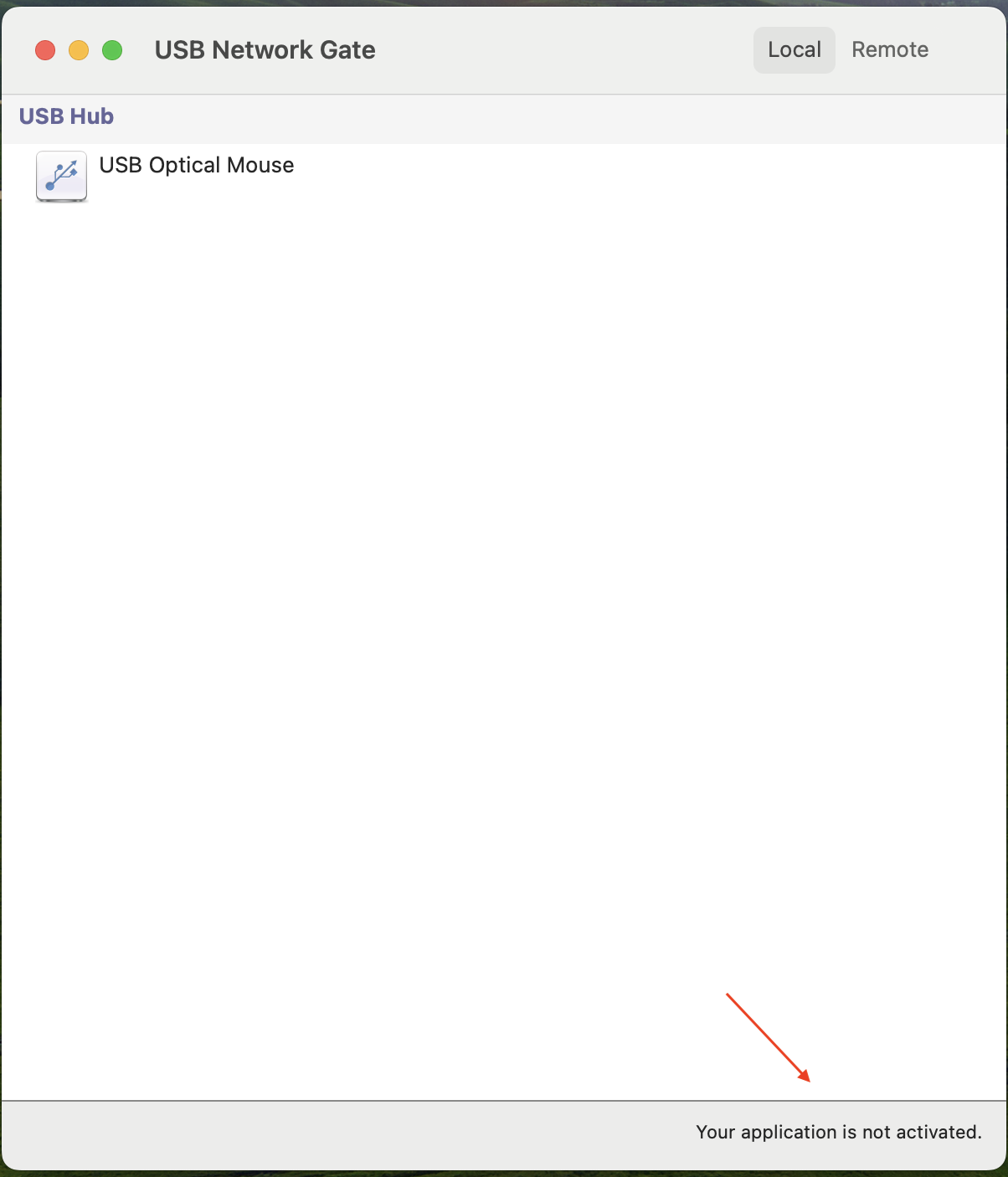
2. In the lower right corner of the application window, you will receive a notification stating that the software is not activated. Click the notification.
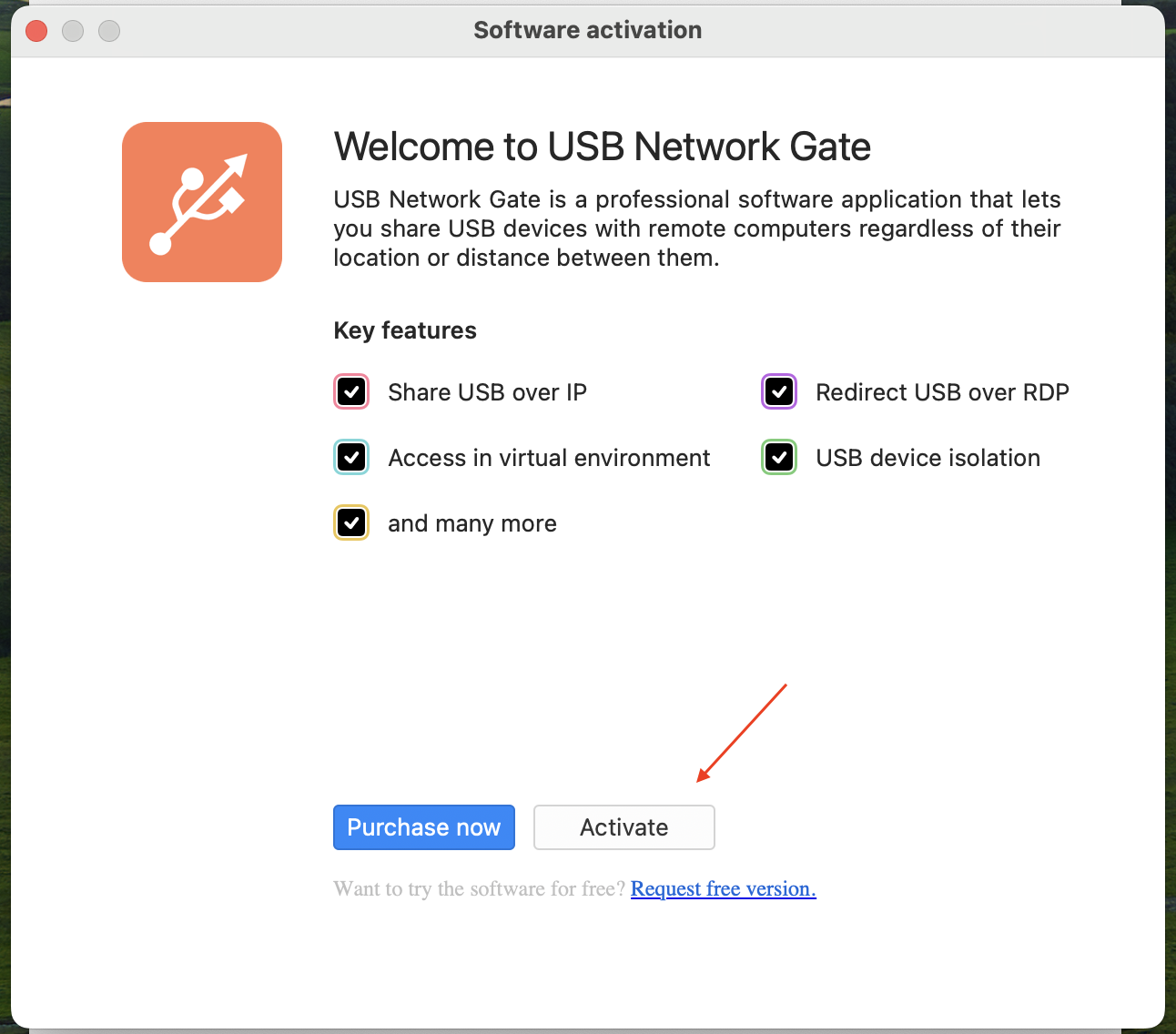
3. Click the Activate button in the window that will open.
4. Enter your activation code and click Activate.
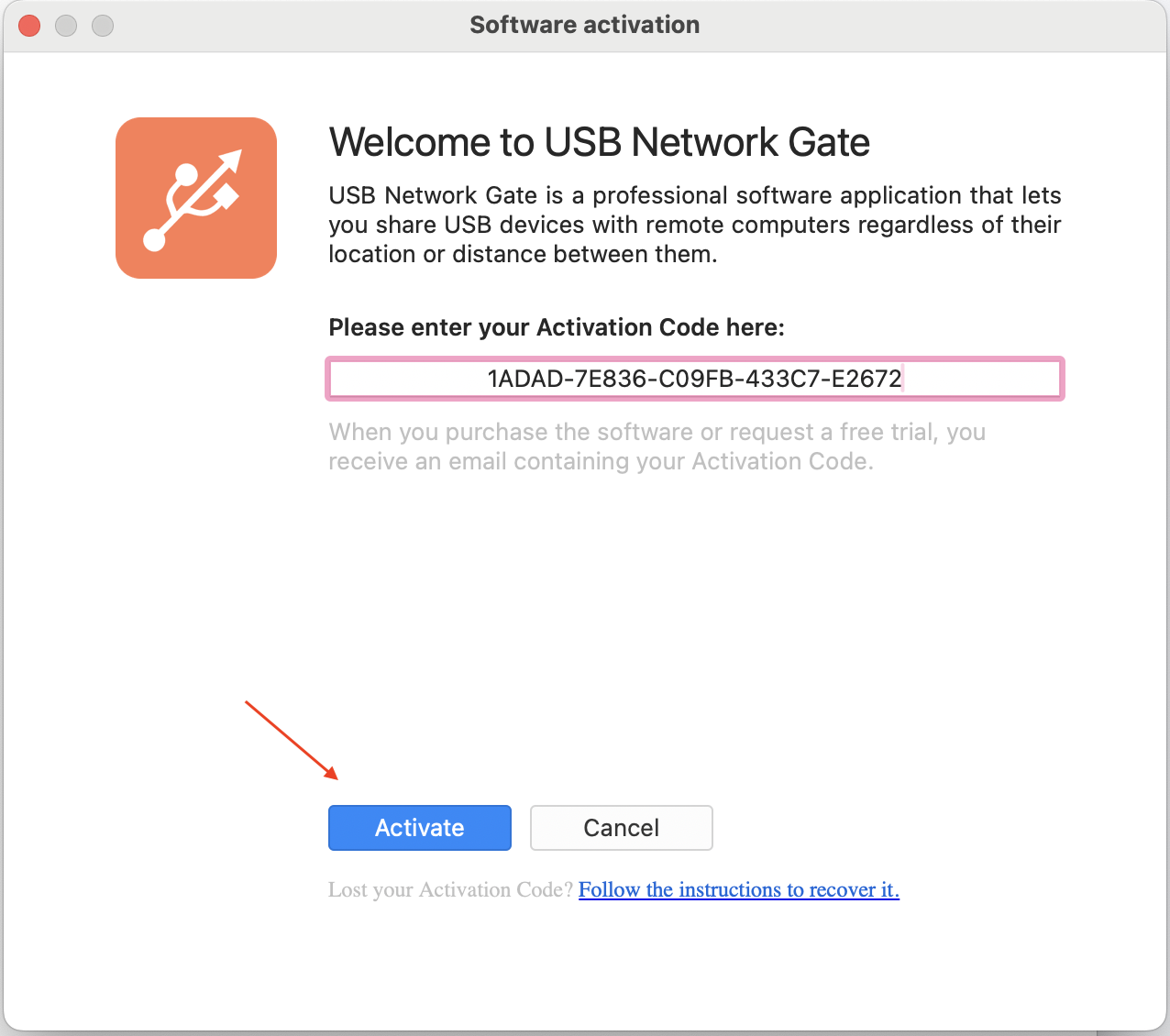
No system reboot or application restart is required to activate the software.
If you don’t have Internet access on your Mac…
You can activate USB Network Gate manually (offline). You will need to use another online Mac to get the special activation file.
Do the following:
1. Repeat steps 1-4 of the instructions above.
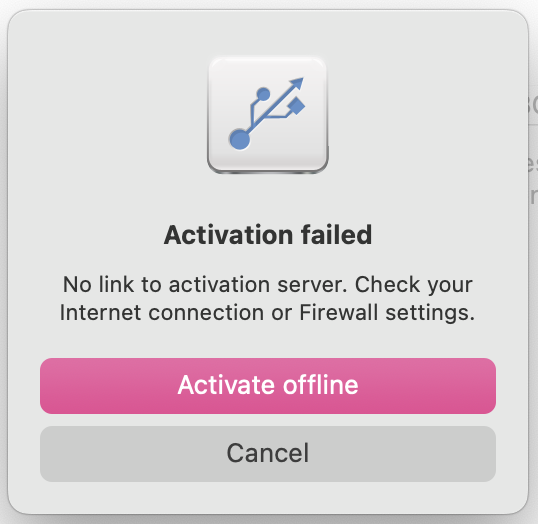
2. You will be notified that your Mac has no internet connection. Click the Activate offline button in the notification window.
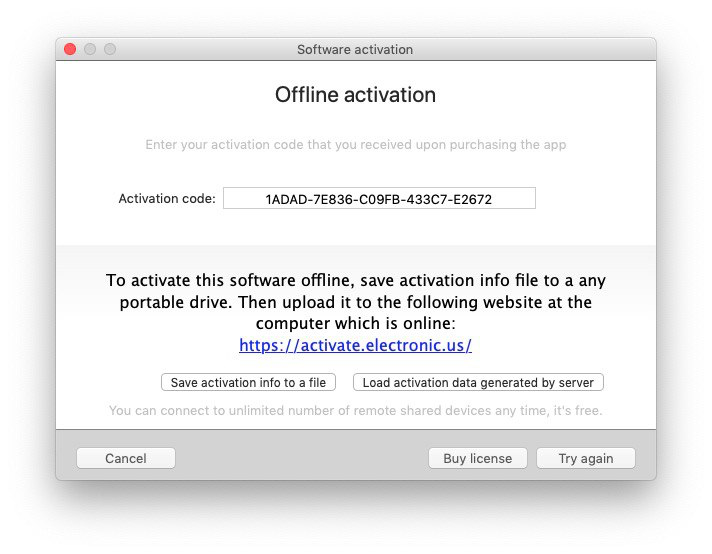
3. In the invoked window, read the instructions and click Save activation info to a file:
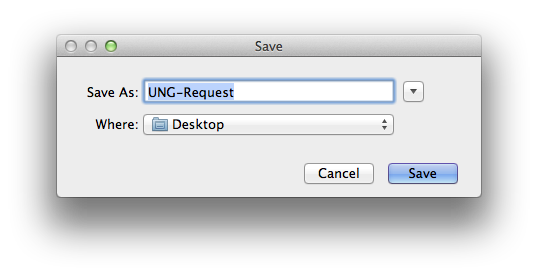
4. Select the location to save your file to and click Save:
5. Then, bring this file (on a USB flash drive, for example) to any computer that has internet access.
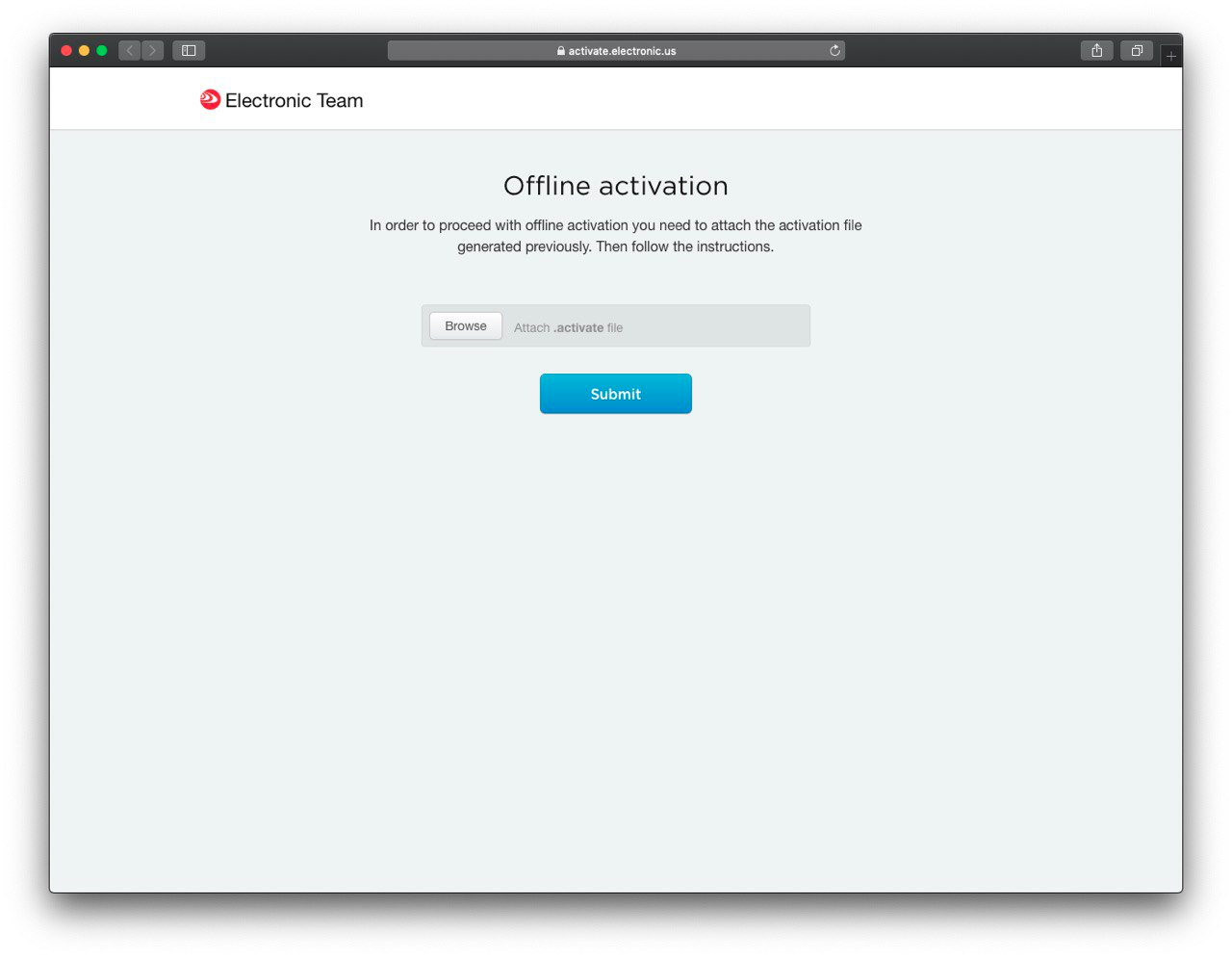
6. Open the offline activation page in your web browser and click Browse to upload the file. When uploaded, click Submit:
7. A new activation file will be sent to your e-mail address. You will also have the possibility to download this file right away.
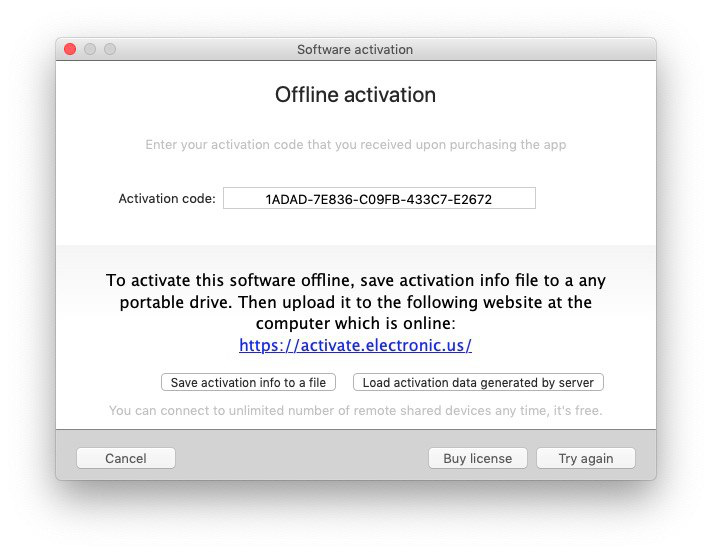
8. Bring this file to your Mac (where USB Network Gate is installed). Repeat steps 1-4 of the activation instructions to open the following window and click Load activation data generated by server:
9. Once activation is completed, you will get a confirmation message.
Notes:
|