
After connecting to your TV, you can fully control it just like with the original remote.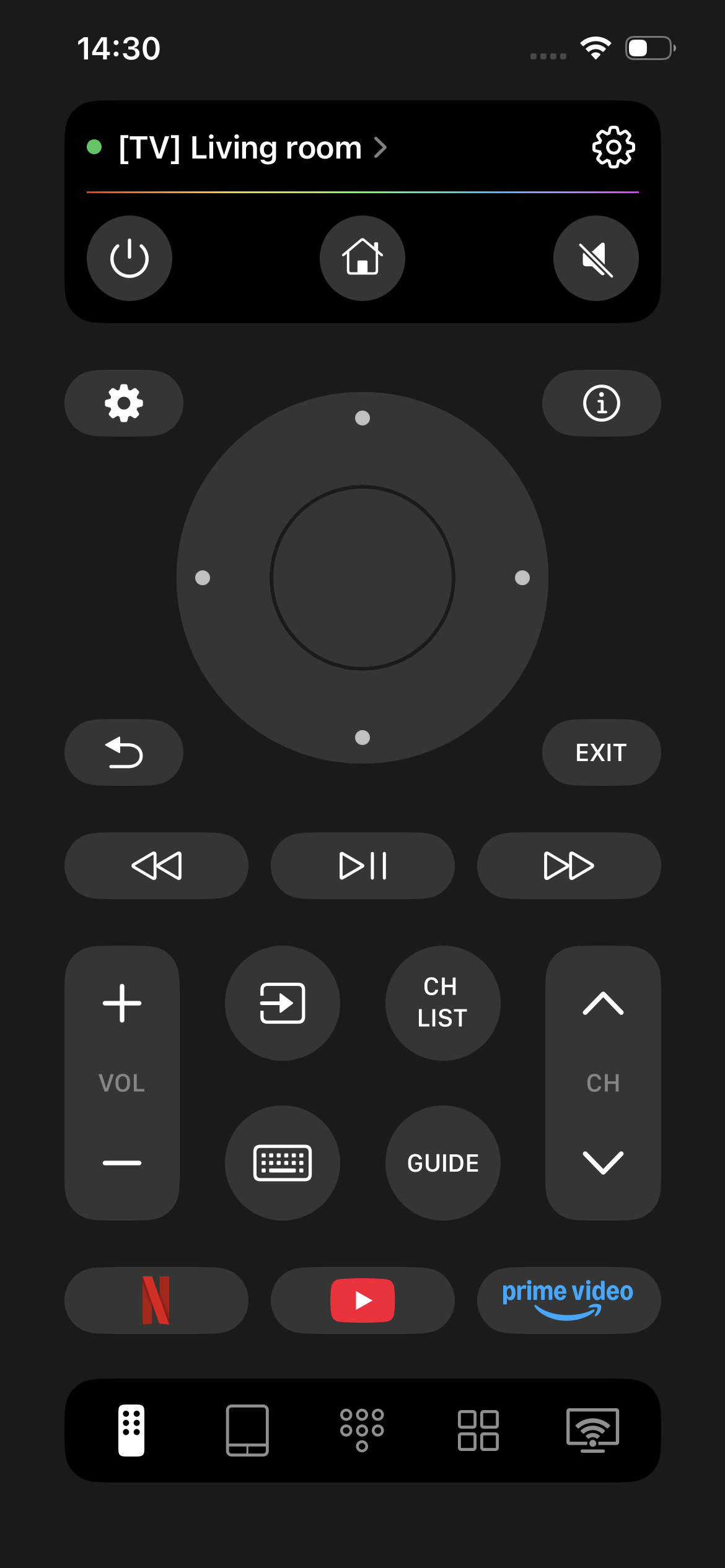
In addition to the standard remote buttons, you also have access to some features that are not available on a regular TV remote: text input from your phone, voice dictation, and voice control on supported TVs.
To enter text, tap the keyboard icon.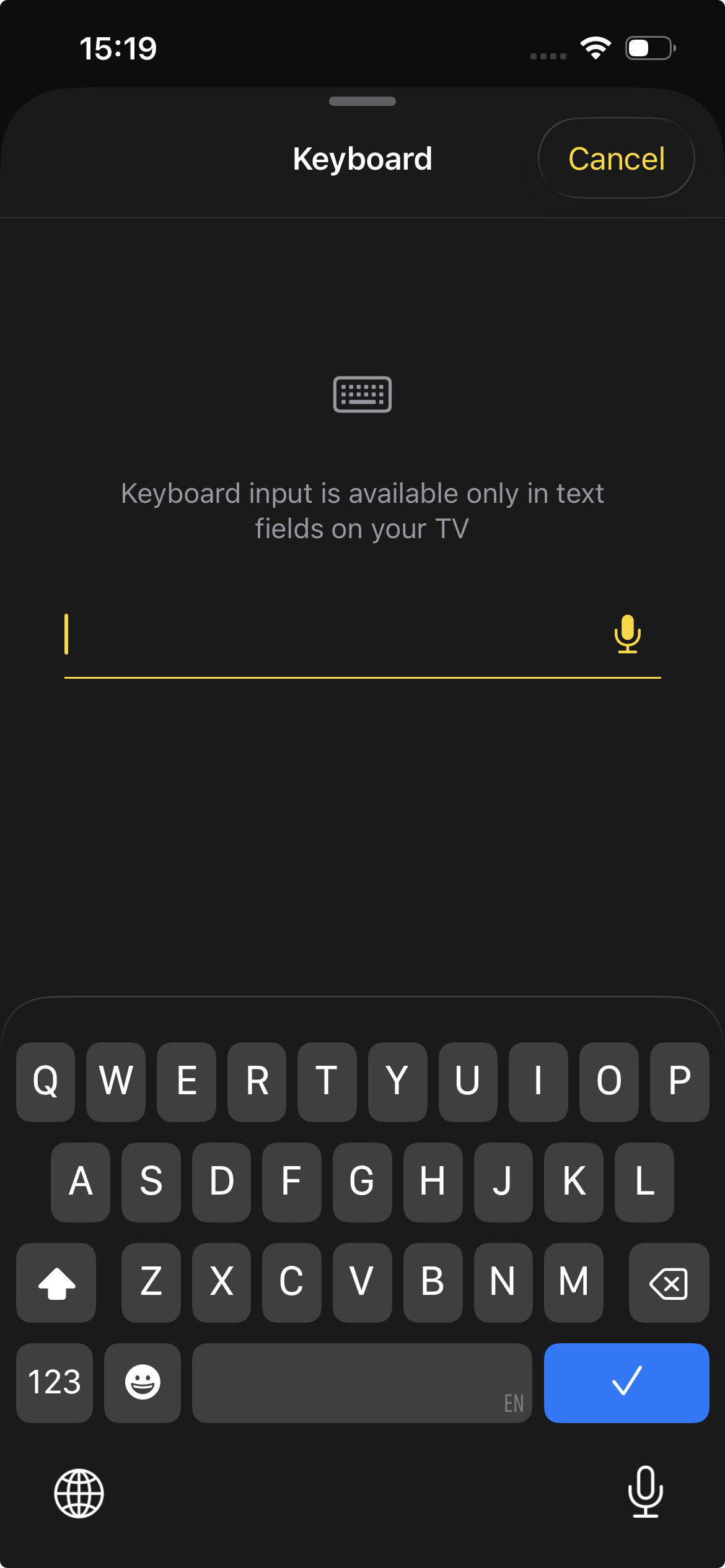
Everything you type will be sent to your TV. For example, you can use this when entering a search query or any other text.
If you tap the microphone on this screen,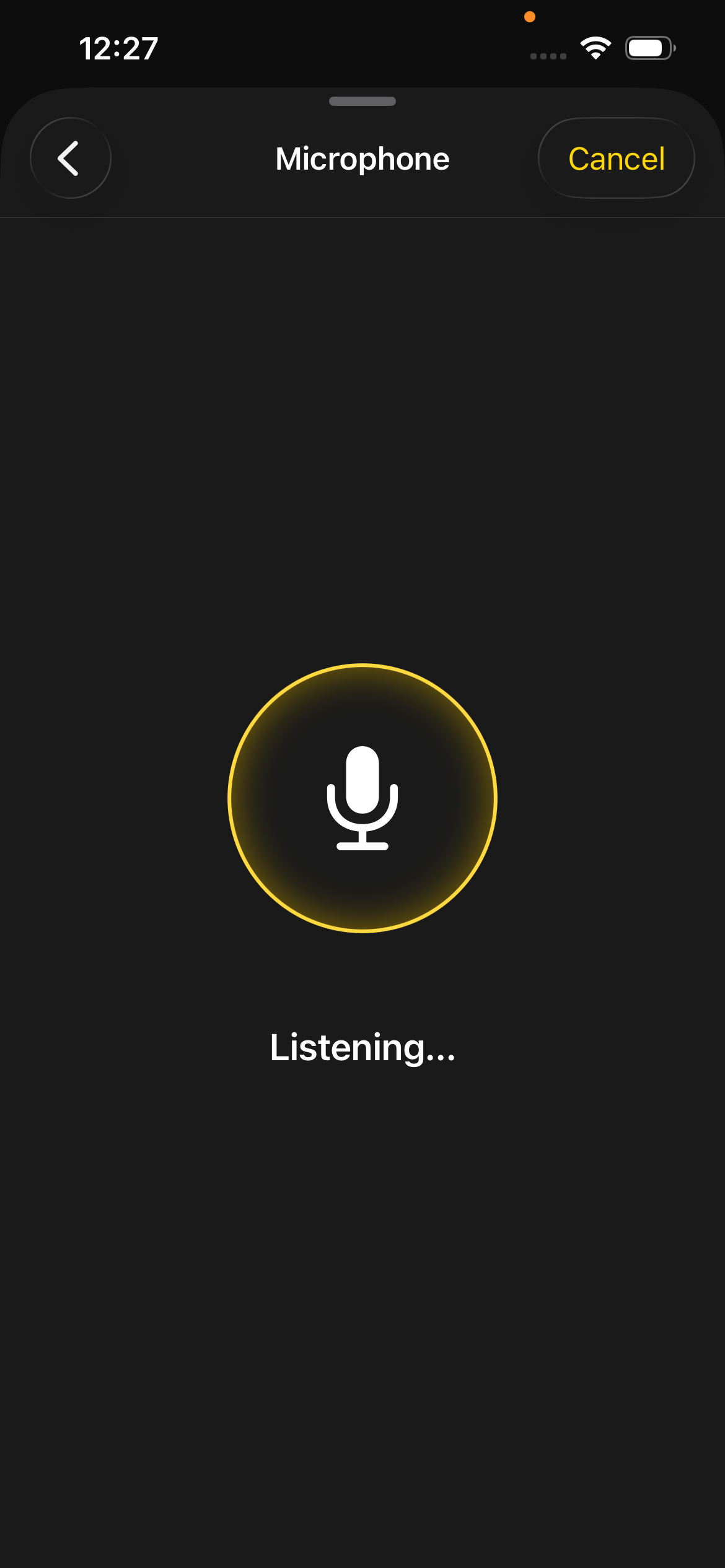 you will be able to use voice dictation instead of entering text with the keyboard. The text you speak will be recognized and sent to your TV.
| Note: Keyboard and voice input may not work in some apps due to the way input is implemented in those applications. |
If your TV supports Google Assistant or Alexa, you can use voice control. In this case, a microphone icon will appear at the top of the screen.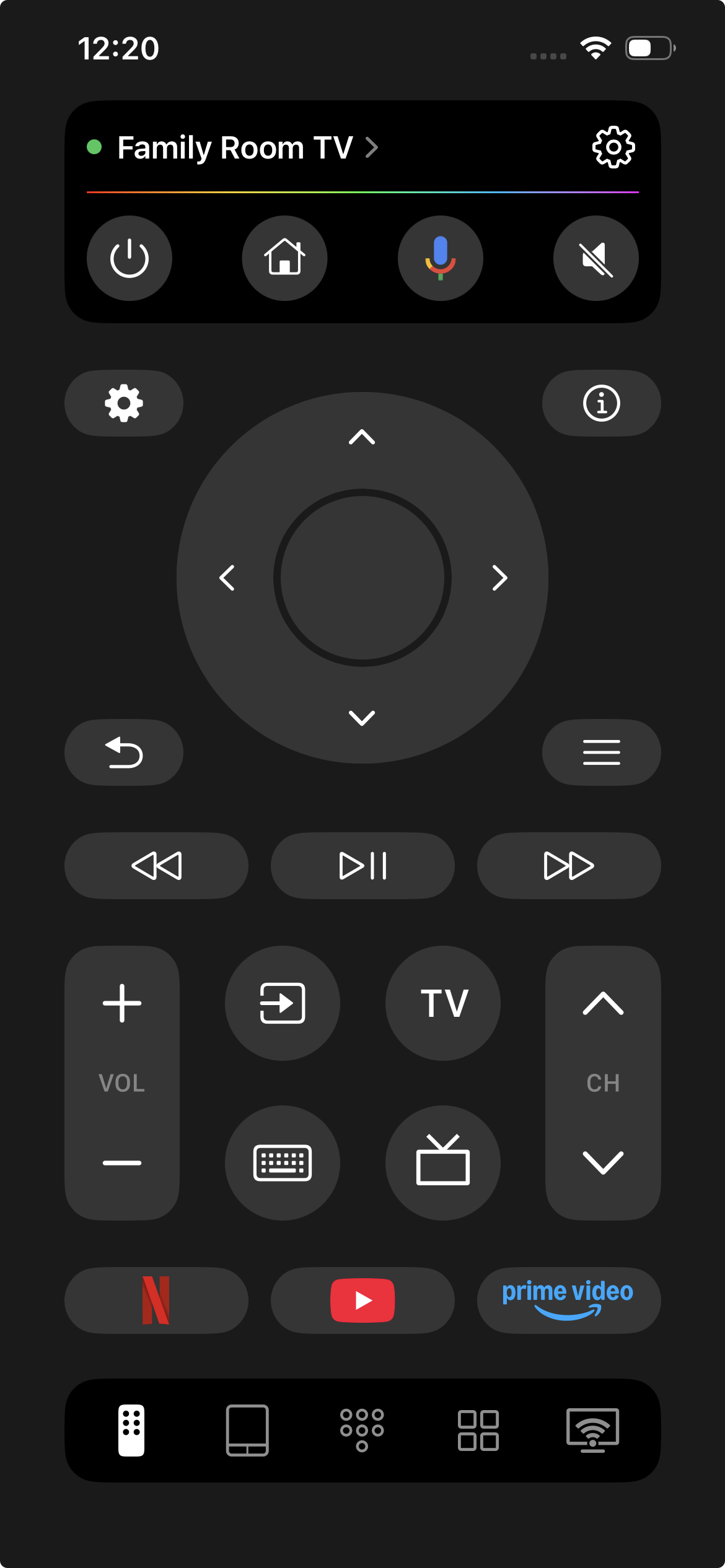 When you tap it, the voice control screen will appear.
 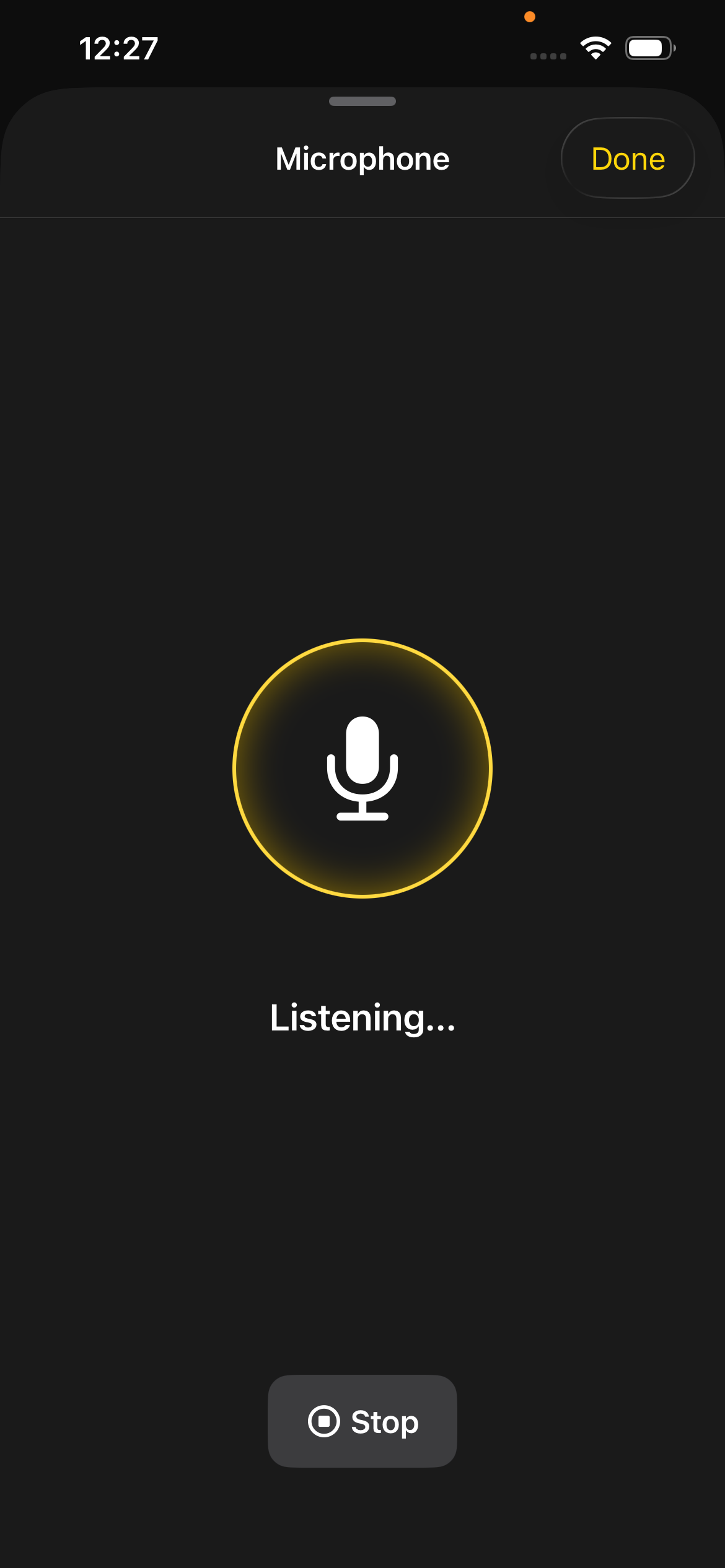 You can say a command, for example, “Open YouTube”, and your TV will recognize it and open the YouTube app.
| Note: To send a voice command to a Fire TV device, tap the Stop button when you've finished speaking, and the Fire TV will respond to your request. |
If needed, you can also switch to the tab to invoke the numeric keypad - for example, to change channels.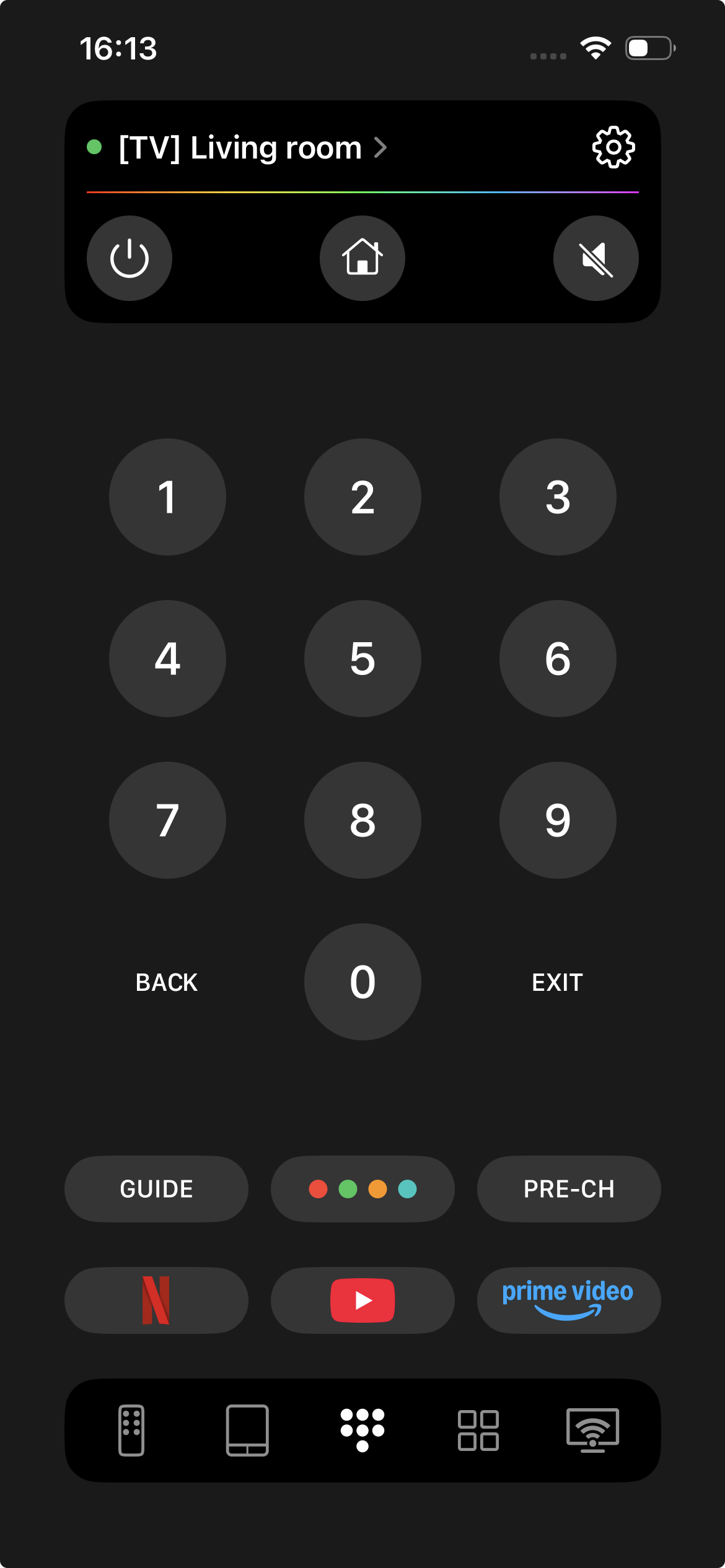
| Note: Some remote buttons may not work on all devices. If you notice that buttons that should work are not functioning, please contact our support team. We will check your device and help resolve the issue. |